Unbox and play.
No paper manual. Here’s everything from the first click to the score on your phone. Two minutes and you’re off.
First, get the DOTTA app
The clickers pair inside the app. iOS and Apple Watch.

iPhone and Apple Watch for now; Android is coming. Don’t worry — one phone with the app is enough on court: both clickers pair to it and audio mode calls the score out loud for everyone.
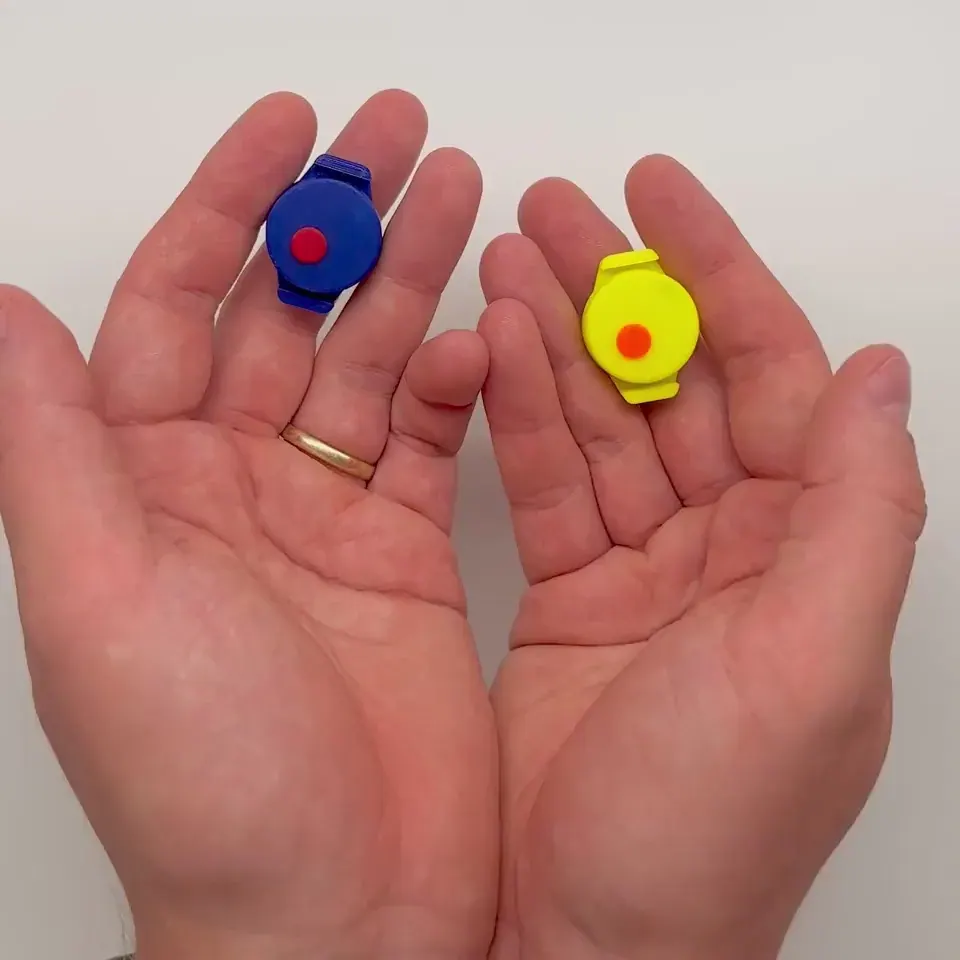
The device in hand
It’s ready straight from the box. Five steps and you’re playing.
- 1
Wake the device
Click it. A short green blink means DOTTA is awake and ready.
- 2
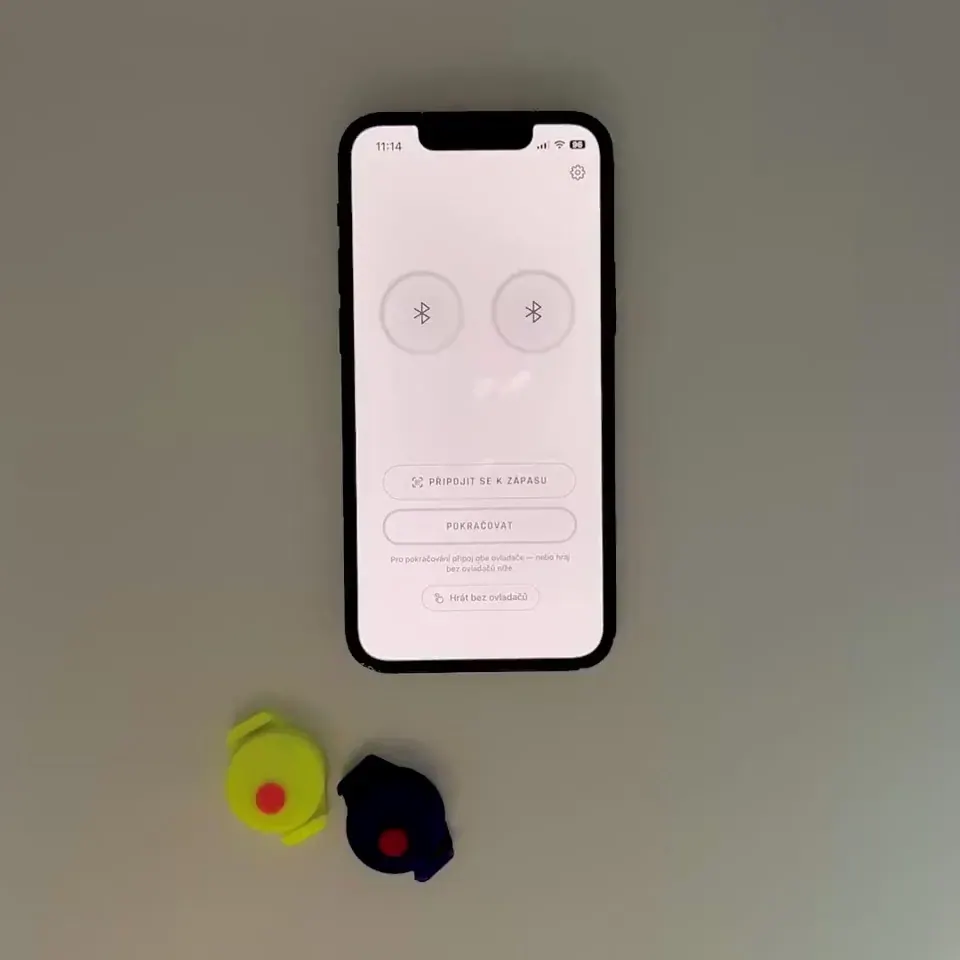
Pair with your phone
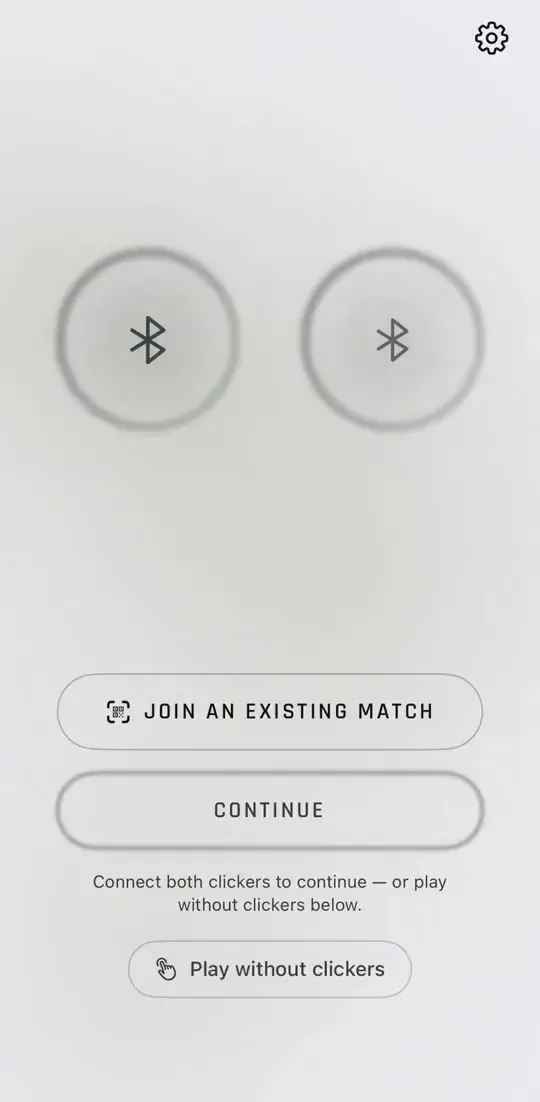
Open the DOTTA app and pick your device from the list. The app asks for a confirming click. Done. Now the same for the second controller.
- 3
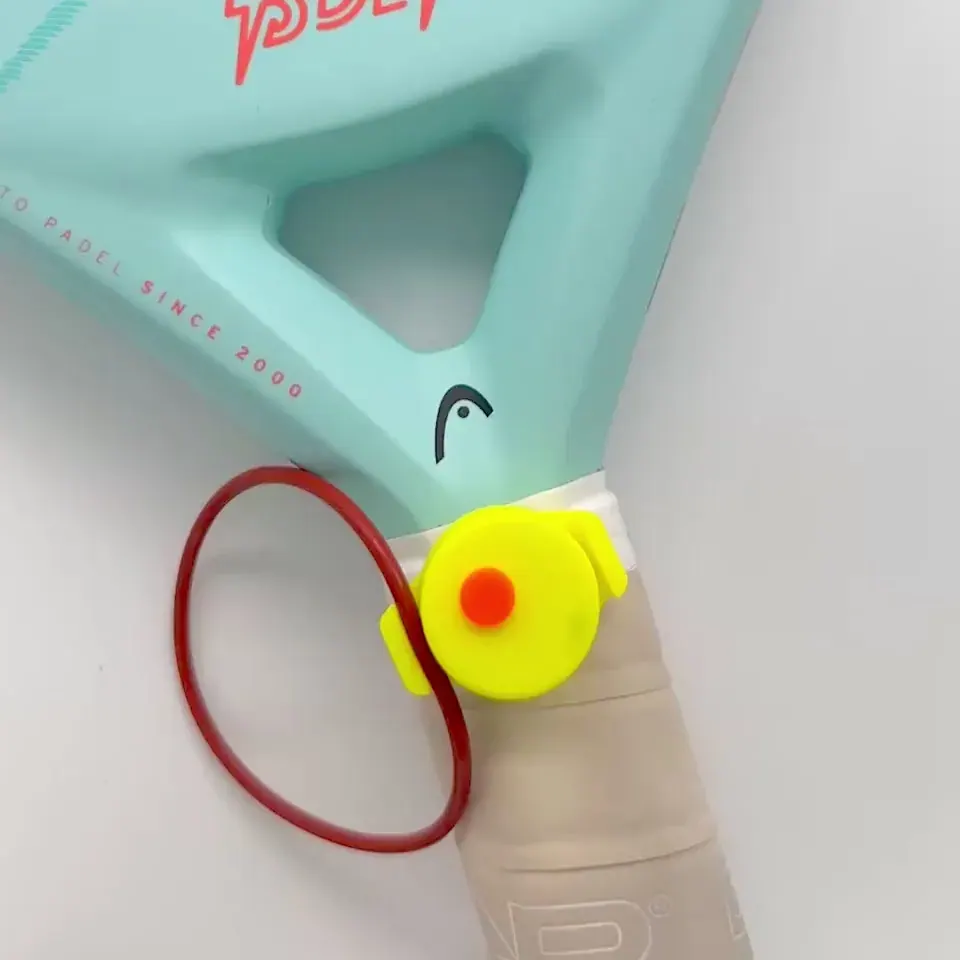
Clip it on wherever it suits you
Wherever suits you — the racket grip or throat, a finger, or, for all we care, your wrist. A single silicone O-ring holds it: stretch it over DOTTA and you’re done. No glue, no tools, and you can move it any time.
- 4
Click for points
A short click adds a point (hold the button for a second and the point comes straight back off). Two quick clicks in a row add nothing — audio mode reads the set standing out loud instead.
- 5
Swap the battery
Open the case and lift out the CR1620 with any tool. Slide the new battery in (plus side up) and close the lid. The device wakes up and reconnects by itself. A dead battery doesn't belong in the bin — drop it at any collection point (map at mapa.ecobat.cz), for example in a supermarket or an electronics shop.
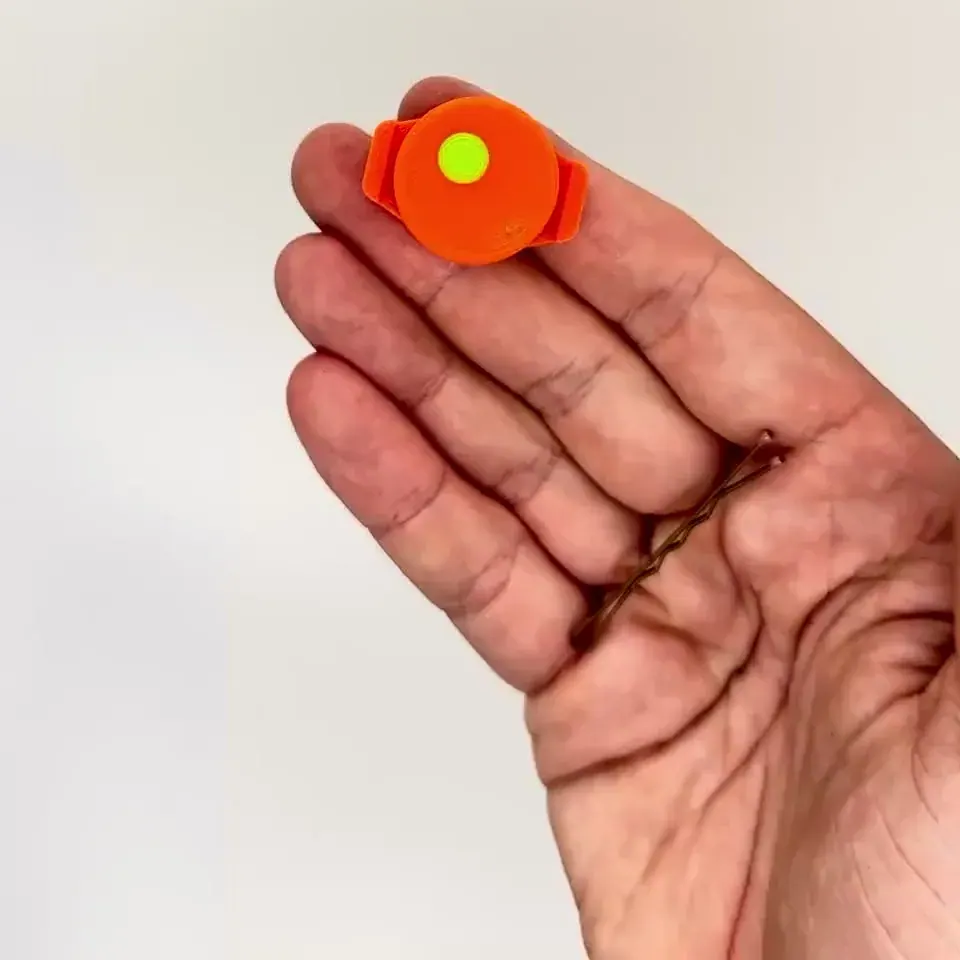
What the blinks mean
The device speaks in color and rhythm. Green confirms, red warns.
- 1× short greenPoint counted. The same short green blink follows a wake-up, and again the moment it links to your phone.
- Green, short then long (“da-daah”)Point taken back. It blinks as soon as you have held the button for a second — you can let go then.
- 2× short greenScore question (double click). Nothing is counted; audio mode reads the set standing.
- 1× short redNo connection — the point didn't count. The device reconnects on its own as soon as it can; click again once it does.
- 2× short redUnclear press: longer than a click, shorter than an undo. Neither one was counted — click short, or give it a proper hold.
- 10× fast redBattery low. It’ll remind you every 30 minutes — swap in a fresh CR1620. Your phone buzzes once, long, to match.
- Alternating red and greenPairing reset: hold the button for 5 seconds while the device is not connected. It then shows up as new to every phone.
No power switch: drop in the battery and click away. After about 30 minutes idle it puts itself to sleep — wake it with a press that won’t count as a point.
Radio parameters: Bluetooth 5.0, frequency band 2402–2480 MHz, maximum radiated power 1,24 dBm e.i.r.p..
The score on your phone and your wrist
The app keeps the rules for you. You just click. And you can try it with no controllers at all — the connect screen has a play-without-controllers option.
- 1
Set up the app
Language, appearance, vibration and a screen that stays on through the match. This is where audio mode goes on too — pick the voice, the style (umpire or commentator) and how often it calls. Side-change alerts, the lock-screen widget, the Apple Watch workout and controller firmware updates all live here.
- 2
Set up the match
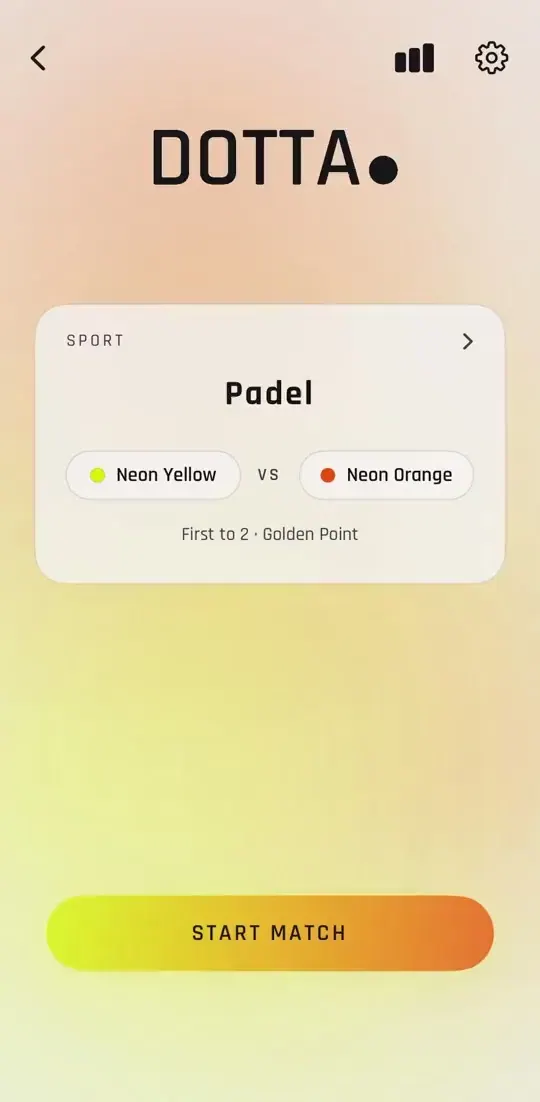
Pick the sport and the format — a single game, best-of sets, or timed — plus the deuce and tiebreak rules. Teams are named after their colors, or set your own. You can add individual players too and follow per-player stats.
- 3
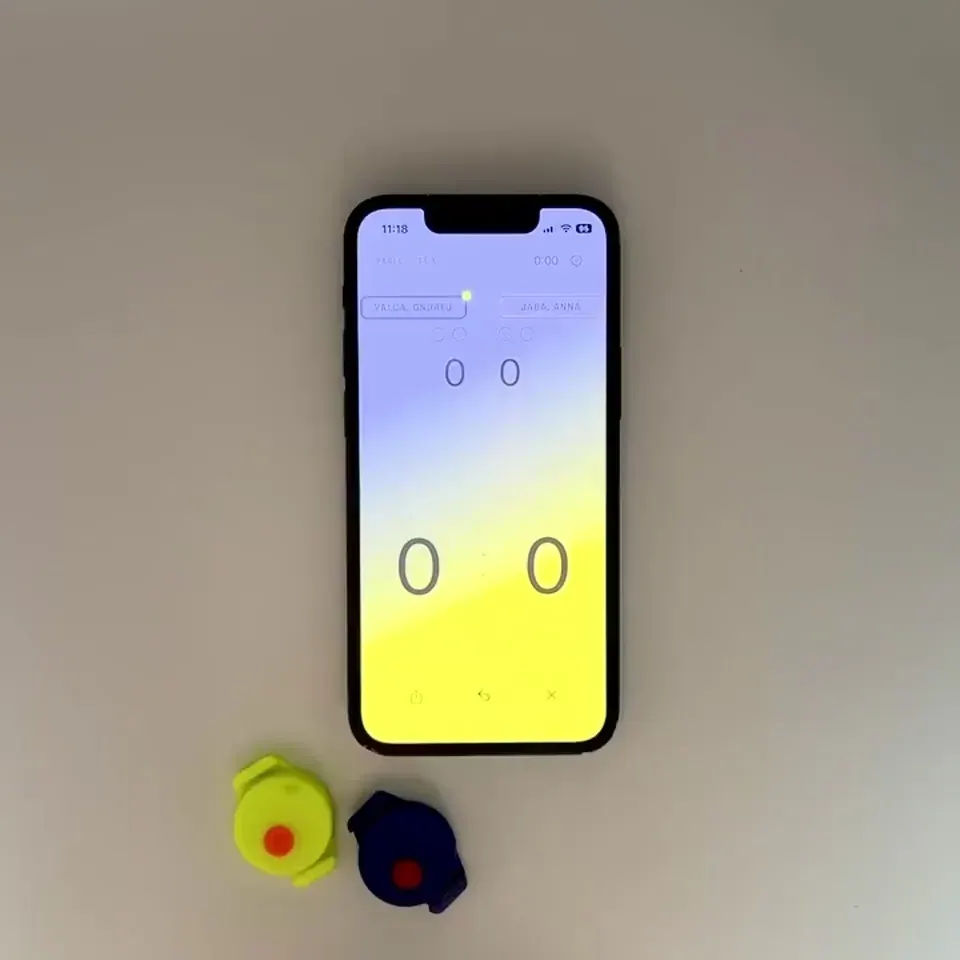
Play
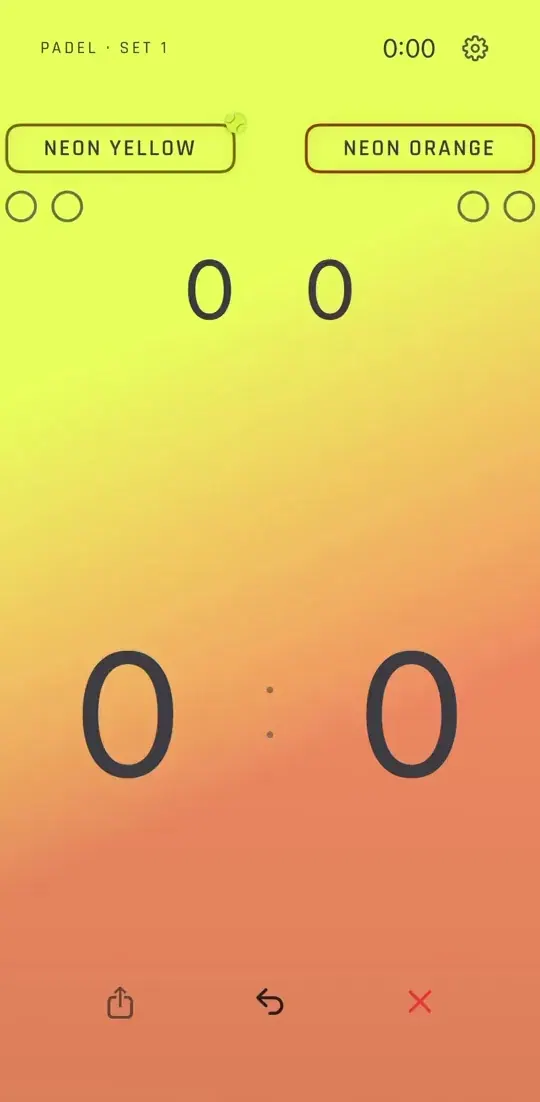
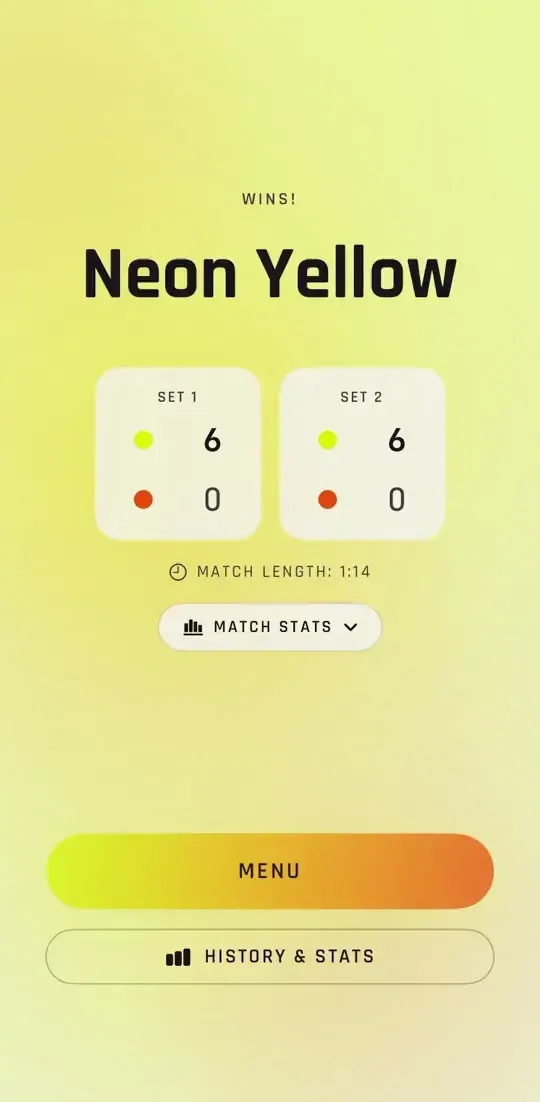
Click after every point and the app works out games, sets and deuce. Take a point back by holding the controller, or with the back arrow in the app. Pause whenever you like — and after the last ball you see straight away who won.
- 4
Result, history and stats
After the match you see the winner, how long it ran and the match stats: winners, longest run of points, serves held. It all saves to your history and adds up into your stats — record, leaderboards, longest winning streak, most frequent matchup. And you can share the match right away.
- 5
Follow the match on another phone
One phone keeps the score, but any number of others can watch it — a team-mate who is playing the same match as well as a friend on the bench. Whoever is counting taps Share Match during the game and shows the QR code; everyone else picks Join an existing match on the connect screen and scans it. The app then asks whether you are playing this match or just watching — if you are playing, your watch starts a workout alongside the score. The score runs live on every phone; only the phone that is counting can still click in it. Keep the phones near each other: the score travels straight between them, not over the internet.
Keep your phone close to the court
Best signal, smoothest game. Put your phone near the court — not in the locker room behind three armored doors. If the connection drops, you'll know at the next click: red = the point didn't count. Don't do anything — it reconnects by itself as soon as it can (and every press speeds it up). Just click again; green = the point counted.
Color is the team
Every team has its own color. The whole app takes on the color of whoever’s leading.
Apple Watch
Score on your wrist, plus an optional activity in the Health app.
Settings and firmware
Language, haptics, always-on display, and controller firmware updates right from the app.
Audio mode
The score is called out loud, umpire style — eight voices, English and Czech. Switch it on in Settings.
Score on demand
Two quick clicks and you hear where the set stands. Nothing is scored — it is a question, not a point.
8 sports, one app
Padel, tennis, squash, badminton and more. Format, deuce, tiebreaks and end changes all follow that sport’s own rules.